Showing posts with label Designer. Show all posts

Tuesday, June 24, 2014

Everything in its Place


The Problem


“Is there an easy way to fully expand and fully collapse my pivot chart?” or its cousin,“Can I just press a button to get the pivot chart back to a default?”
These are relatively frequent questions that I never had fully satisfactory answers for.
Before we get into the tip, I used to recommend Right Click à Collapse All or Right Click à Collapse Dimension Columns to collapse the chart and Right Click à Expand All to expand columns (one-by-one).

That solution is not great because first, if you are expanding the chart all the way out, you still have to do it one column at a time.  But the biggest problem presents once you pivot a dimension horizontally.  At that point, you cannot collapse the pivoted column without first un-pivoting the column.

Solution – The Layout Bookmark


The solution to this is actually pretty neat.  It involves a special kind of bookmark – The Layout Bookmark.  Our example will simply involve a collapsed state and a fully expanded and pivoted year column state.

First create a pivot chart and manipulate the columns so that none are pivoted and all are collapsed. 

Then we simply create a document bookmark Bookmarks à Add Bookmarks as follows.


Notice that we have unchecked “Include Selections in Bookmark”.  We want to be able to invoke this bookmark without affecting the current selections.  The only thing this bookmark will change will be the “layout state” of the application.
Next, expand out all the columns and then pivot the year column horizontally. 


Create another layout bookmark.
 
Now we need to create a couple buttons that will simply invoke each of these layout bookmarks.  But first, we need to know the id’s.  Go to Bookmarks à More…

 
There you can see that the id’s for these bookmarks are BM01 and BM02.  Take note of them.
Finally, create the buttons. 
You can name the button whatever you want and then for the button action, use Bookmark à Apply Bookmark along with the id for the bookmark you with to trigger.
 
Here is the finished product.  Hitting the buttons will expand or collapse the chart to the desired setting.

Notes

There are some complications to be aware of when creating layout bookmarks.
·         The layout state affects the entire sheet.  When you create a layout bookmark, it is taking a snapshot of the entire sheet layout, not just the pivot chart you are concerned with.  This includes minimize/restored settings and cyclic dimensions for all objects within the sheet.

·         The layout state activates the sheet.  This means that if you put this button on a different sheet, it will activate the sheet the bookmark was created on.  This could be good or bad but is important to understand for your use-case.

·         Layout states are hidden in containers.  If your charts are in a container, the layout state for objects within the container will not be saved.

Conclusion

Some of the other things that might be done using layout bookmarks.
·         Default sheet state
·         Set a cyclic dimension to be shown
·         Set a grouped expression to be shown
·         Set restored or minimized objects on a sheet
·         Set which object is shown within a single style container
I would love to hear any other ideas you have for this concept or other feedback.  Happy Qliking.


Tuesday, May 27, 2014

Let's Do Something Cool with Color


Script-Side ColorMix – Subcategory Color Assignments
This exercise came from something I did for my personal use, but I think the principal can be applied to business cases as well.  You can download the example here.

I have long used the ColorMix wizard in QlikView for heat map charts.  Using this function QlikView can assign colors to values in your chart based on its position in the range of all values.  This is an immediately apparent use-case but I wanted to do something a little different.

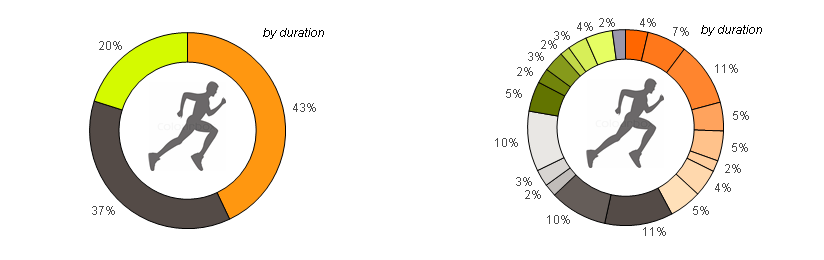
I have a regular fitness program where I mix up different types of activities throughout the week.  In addition to the main activities, I want to be able to visually separate sub activities from each other while still maintaining them as activity groups.  Here are screen shots of the Activity and the Activity SubClass broken out to show you what I mean:


Left - By Activity                                Right - By Activity SubClass

So my P90X programs will always be some shade of gray.  My Insanity programs will all be some shade of Orange, etc.  The front-side ColorMix function is great, but it would be very difficult to assign these in the front-end especially considering the grouped dimension and varying numbers of SubClass groups as time goes on.

The idea is that when only the Activities are shown, I want to explicitly assign the main colors.  But when we break these out into Activity SubClass, I want to dynamically assign a shade of that Activity color to each of the Activity SubClass values within it.  I realized quickly that the best way to do this was to utilize ColorMix in the script.

The first step is to decide what colors should be assigned to each category.  Create a spreadsheet and give each Activity an RGB value.  You must also decide what will be the range of colors that will be used to create the Activity SubClass colors.  In this case, the Activity list will need to be maintained, but the SubClass values can vary because the actual RGB values for each distinct SubClass will be assigned at reload time.
 
Activity ColorTop ColorLow Color
ActivityRGBRHGHBHRLGLBL
Insanity255151162551020255224185
P90X847571847571233231228
Hiking212250098116023025499
Running34841583484158118154207
Biking1302715913027159186112207
Elliptical255797925579792557979

 
Next you must create the script that will load these up and create the structure that will facilitate the ColorMix operation. 
Create a table with the distinct Activity SubClasses creating a key.
//  load distinct keys
TempColorMix:
load distinct ActivityKey, Activity as Act, [Activity SubClass] as ActSub, ActSubSort
resident ActivityLog
where not isnull(ActivityKey)
order by ActSubSort;
 
Create a counter row that resets for each major Activity.
//  add the subrow row numbers for each activity
//  must be done in separate step due to ordering and distinct features.
Temp2ColorMix:
load ActivityKey, Act, ActSub,
if(Act<>peek('Act'),1,peek('SubRow')+1) as SubRow
resident TempColorMix
order by ActSubSort;
drop table TempColorMix;
 
Now find the low and high value for each activity.  This will give the ColorMix function the ranges to create colors for.
//  find the max and min row number for each activity
left join (Temp2ColorMix)
load min(SubRow) as SubMin, max(SubRow) as SubMax, Act
resident Temp2ColorMix
group by Act;

Add in the actual color ranges we had set up in the spreadsheet.
//  join in the guide colors
left join (Temp2ColorMix)
LOAD Activity as Act,
    
argb(255,R,G,B) as ColorAct,
    
RH, GH, BH,
    
RL, GL, BL
FROM Data\Workouts.xlsx(ooxml, embedded labels, header is 1 lines, table is ColorMix);
 
Note that you can use a standard color dispersion or an enhanced color dispersion that results in a more distinguishable set of colors.  I put both examples in the sample script and just commented out the standard one.
//  now we can get the color for each Activity SubClass and create final table
ColorMix:
load ActivityKey, ColorAct,
   
//if(SubMax=1,ColorAct,colormix1((SubRow-SubMin)/(SubMax-SubMin),rgb(RH,GH,BH),rgb(RL,GL,BL))) as ColorSub //  standard color dispersion
    if(SubMax=1,ColorAct,colormix1((1+sign(2*(SubRow-SubMin)/(SubMax-SubMin)-1)*sqrt(fabs((2*(SubRow-SubMin)/(SubMax-SubMin)-1))))/2,rgb(RH,GH,BH),rgb(RL,GL,BL))) as ColorSub //  enhanced color dispersion (less collision in the middle spectrum)
resident Temp2ColorMix
order by Act, ActSub;
drop table Temp2ColorMix;


After reloading, we can focus on visualization. Create a variable expression to assign our colors.  We used $(vColorPick).
 
if(getcurrentfield(ActivityGroup)='Activity',ColorAct,
   if(count(distinct
[Activity SubClass])=1,ColorSub,rgb(154,151,170)))
This variable can be called in the Background Color attribute for the expression in any chart.  If you need help with Background Colors in Expression Attributes reference this article.  We added an else statement to take care of any values we neglected to assign in our spreadsheet.
So hopefully this has value for you.  I have posted the spreadsheet and qvw here.  Feel free to use it to learn more about this method OR obviously you could use it to keep your own workout log.

Is this valuable to you?  Then please share. 
Do you see other use cases or a better way to do this?  Then please comment.