Collecting Stats Helps Debugging and Alerts You to Problems
Most organizations will use QVD Generators to build out QVD
data layers suitable for QlikView’s consumption. There is generally no need to create any
visualizations in these QVD Generators except for maybe some validation tables
and some QVD statistics. Today we will
focus on an easy way to gather those statistics. The statistics I generally gather help me
answer questions regarding the output QVDs.
·
Which QVDs were written with this application?
·
How long did it take to create this QVD?
·
How many rows were written?
·
How many fields were in each table?
Obviously, being able to easily answer these questions helps
us better understand and serve the BI enterprise. It also provides a helpful tool for debugging
logical errors in our QlikView scripts.
And because we actually take this statistics table and write
it to QVD as well, we can use it in later loads as needed to create a data
source lineage for a particular application.
Another benefit of creating this statistics QVD(s) is that I can drop
all the tables that created the QVDs while still retaining the statistics. This leaves the application light and quick
to save.
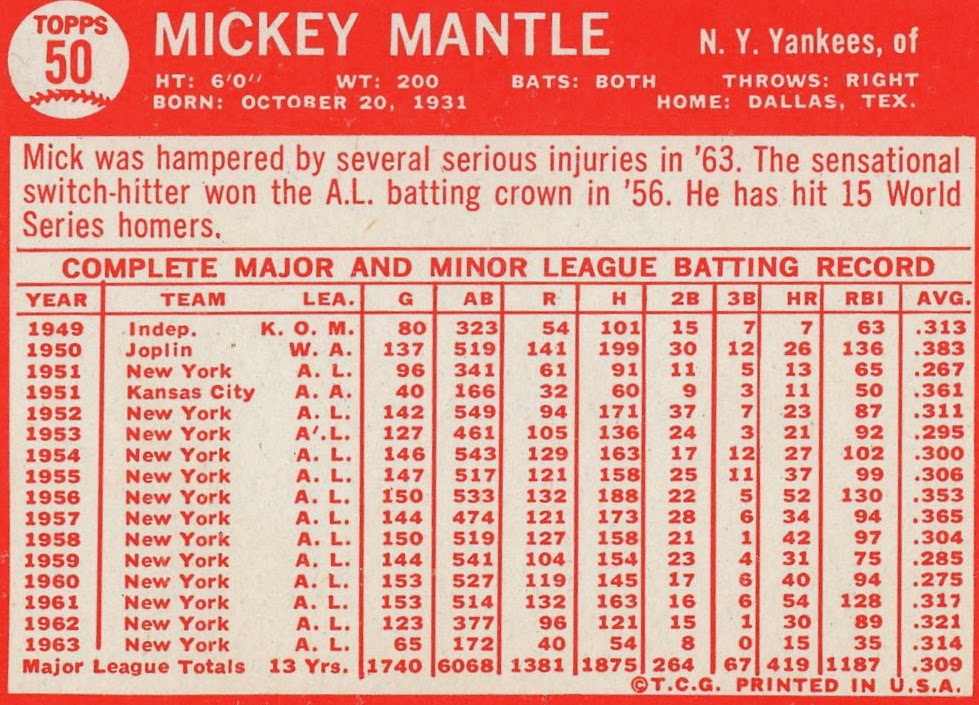
Here is an example of the front end to show you what kind of
data will be collected and displayed. Of
course, the stats you collect and present are really up to you, the developer.

How to set up the collection
I use blocks of code that can be basically put into any
script and adjusted as needed. We
basically have four chunks of code that get deposited into our script.
1.
Set up any needed global variables and set up
the statistics table structure.
2.
Set up a sub-routine that creates the stat table.
3.
Change the start time and table name each time
we go to a new QVD.
4.
Call the subroutine.
Set up any needed global variables and set up the statistics table structure
First, create any variables that will need to be collected
in your statistics or displayed in your front end. For this example, we are using a variable to
determine my directory, the name of my environment, the source, division and
the path for my statistics QVD. These
two chunks of script should be inserted towards the beginning of the script before any
loading occurs.
//dev
set vDir = 'C:\Users\Aaron\Documents\QlikView Apps\Blog Apps\Statistics Collection';
set vEnv = 'Dev';
//prod
//set vDir = 'D:\QlikView Documents\Production\Sales';
// Set variables for qvd naming
set vDivision= 'QAP';
set vSource = 'BAAN';
LET StatisticsPath = '$(vDir)\ETL_Statistics_$(vDivision)_$(vSource).qvd';
set vDir = 'C:\Users\Aaron\Documents\QlikView Apps\Blog Apps\Statistics Collection';
set vEnv = 'Dev';
//prod
//set vDir = 'D:\QlikView Documents\Production\Sales';
// Set variables for qvd naming
set vDivision= 'QAP';
set vSource = 'BAAN';
LET StatisticsPath = '$(vDir)\ETL_Statistics_$(vDivision)_$(vSource).qvd';
We also will look for an existing statistics QVD and if one is
not found, we will create it.
IF FileSize('$(StatisticsPath)')
> 0 THEN // The Statistics QVD already exists.
ELSE // The Statistics QVD needs to be created
Statistics:
LOAD * INLINE [
TableName, Division, Source, ReloadedDate, StartTime, EndTime, Duration, Records, Fields
, ];
STORE Statistics INTO $(StatisticsPath)(qvd);
DROP TABLE Statistics;
END IF
ELSE // The Statistics QVD needs to be created
Statistics:
LOAD * INLINE [
TableName, Division, Source, ReloadedDate, StartTime, EndTime, Duration, Records, Fields
, ];
STORE Statistics INTO $(StatisticsPath)(qvd);
DROP TABLE Statistics;
END IF
Set up a sub-routine that creates the stat table
Next we create a subroutine that appends the statistics each
time we load new data into a QVD. This
script records all of the needed data from whatever load has just occurred,
adds it to the existing statistics records and then saves the whole thing back
to QVD. This script gets inserted just
below the prior set up stuff and will be called at various times later in the
script.
sub Stats
// Call this script between qvd store and drop table commands to gather statistics for the qvd.
// There must be a vStartTime and a vTable variable
LET vEndTime = NOW();
LET vRecords = NoOfRows('$(vTable)');
LET vFields = NoOfFields('$(vTable)');
Statistics:
LOAD * FROM $(StatisticsPath)(qvd) WHERE TableName <> '$(vTable)';
JOIN (Statistics)
LOAD DISTINCT '$(vTable)' AS TableName, '$(vDivision)' AS Division, '$(vSource)' as Source, DATE(NOW()) AS ReloadedDate, '$(vStartTime)' AS StartTime, '$(vEndTime)' AS EndTime,
INTERVAL(NUM('$(vEndTime)') - NUM('$(vStartTime)'),'hh:mm:ss') AS Duration, $(vRecords) AS Records, $(vFields) as Fields
RESIDENT Statistics;
STORE Statistics INTO $(StatisticsPath)(qvd);
DROP TABLE Statistics;
end sub
// Call this script between qvd store and drop table commands to gather statistics for the qvd.
// There must be a vStartTime and a vTable variable
LET vEndTime = NOW();
LET vRecords = NoOfRows('$(vTable)');
LET vFields = NoOfFields('$(vTable)');
Statistics:
LOAD * FROM $(StatisticsPath)(qvd) WHERE TableName <> '$(vTable)';
JOIN (Statistics)
LOAD DISTINCT '$(vTable)' AS TableName, '$(vDivision)' AS Division, '$(vSource)' as Source, DATE(NOW()) AS ReloadedDate, '$(vStartTime)' AS StartTime, '$(vEndTime)' AS EndTime,
INTERVAL(NUM('$(vEndTime)') - NUM('$(vStartTime)'),'hh:mm:ss') AS Duration, $(vRecords) AS Records, $(vFields) as Fields
RESIDENT Statistics;
STORE Statistics INTO $(StatisticsPath)(qvd);
DROP TABLE Statistics;
end sub
Change the start time and table name each time we go to a new QVD
So now we go about the business of loading data from our data
sources and creating QVDs. The basic
idea is that we will need to establish some variables at the beginning of each
load and then run the subroutine at the end of each load. Using this approach we can collect statistics
for every QVD that gets created. Start
by adding this script to the top of each data loading section. Note the vTable variable could also be used
within your load statements to name your table.
// Append
this script to the start of each qvd creation.
LET vStartTime = NOW();
SET vTable = 'ETL_Sales_Header';
LET vStartTime = NOW();
SET vTable = 'ETL_Sales_Header';
Call the subroutine
Finally, we can call the statistics subroutine that will
record our ending variables and append the QVD.
This simple code will run the routine we created in the second step.
// call
subroutine to gather statistics for the qvd.
call Stats;
call Stats;
Place this code after we store each data QVD. One thing to note is that you should wait to
drop the data QVD until after this subroutine runs or simply drop them all at
the end of your script.
Thoughts?
There are many ways we can simplify the data we are
collecting or expand the data. Hopefully
this structure is clear and economical enough for you to adjust to your
needs. The example I provided is simply
what I use to complete this task and I tweak the code depending on the
situation.
As always, I hope you find this valuable. Please let me know what you think. And if you accomplish statistics collection
differently or can improve upon this, please participate in the discussion.